Camera Grid

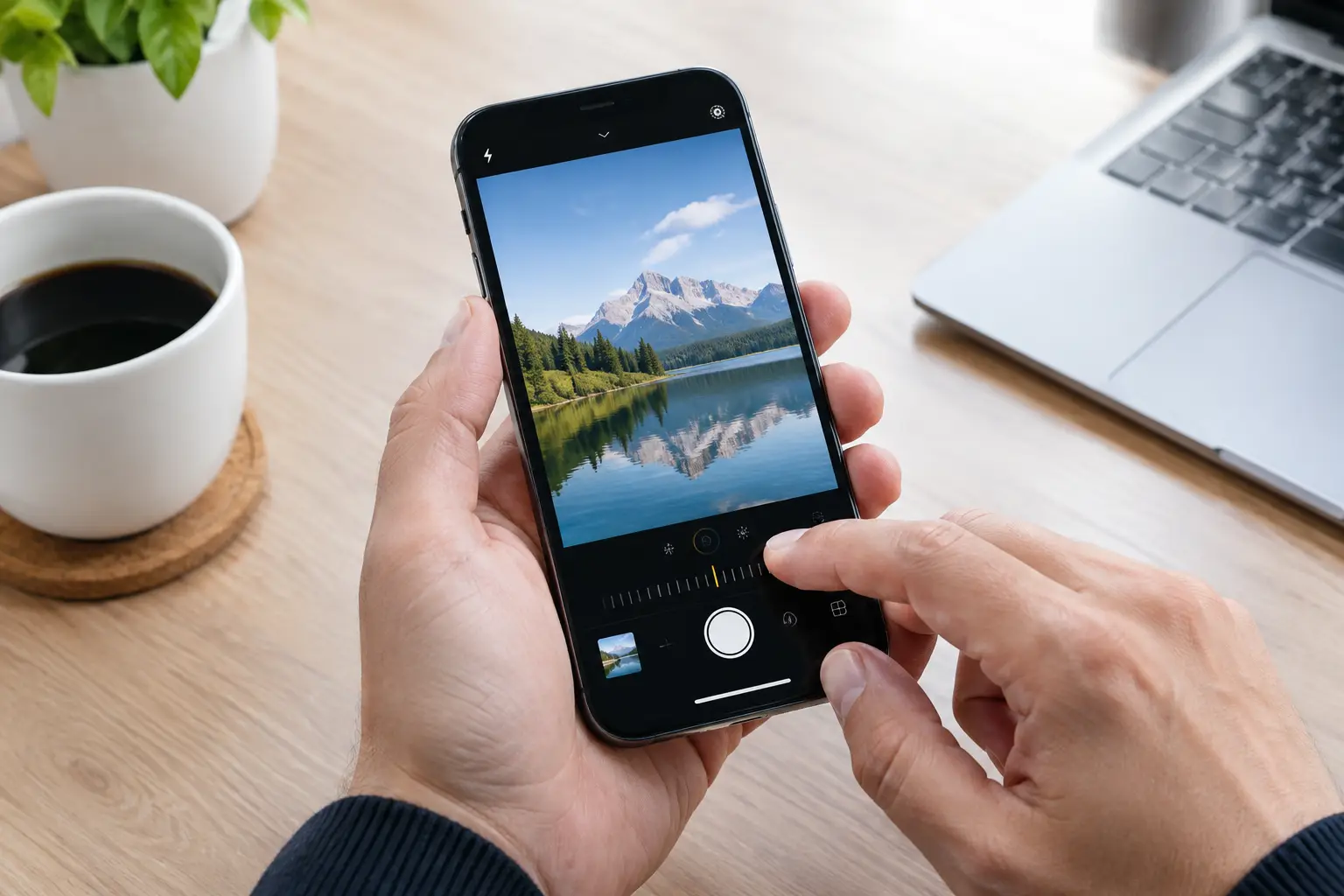
A ProRAW camera app for iPhone should do more than produce a large file. It should help you make better decisions before you press the shutter: where to place the subject, what to protect in the highlights, and when the extra editing latitude is worth the storage.
Apple ProRAW gives iPhone photographers more room to recover and refine an image. But it does not repair a tilted horizon, a crowded background, or a portrait framed without intent. Choose the app that helps you get the frame right first, while preserving the capture controls that make ProRAW useful.
What a ProRAW camera app for iPhone should preserve
ProRAW combines RAW image data with Apple’s computational photography pipeline. The resulting DNG file retains more information than a standard HEIF photo, especially in challenging light. You can adjust white balance, shadows, highlights, and color with more flexibility after capture.
That flexibility comes with a cost. ProRAW files are much larger than HEIF files, and 48 MP ProRAW files are larger still. They take more space, require more processing, and reward a deliberate editing workflow. For a quick family snapshot in even light, HEIF is usually the sensible choice. For a high-contrast landscape, a carefully lit food photograph, or an architectural scene with bright windows and dark interiors, ProRAW can justify the extra weight.
A capable camera app should preserve the controls that support that choice. Look for access to ProRAW where your iPhone supports it, 48 MP capture on compatible models, zoom options, aspect ratios, Live Photos when appropriate, and AE/AF lock. These are not decorative settings. They determine what you can hold steady before the image is made.
AE/AF lock matters more than it first appears. In a backlit portrait, tap to focus on the face, set exposure for the skin, then lock it. Reframe without allowing the camera to brighten the entire scene and wash out the background. In a window-lit café, lock exposure before moving a plate into the strongest position. Small decisions like this reduce editing work later.
Start with the frame, not the file format
ProRAW is most valuable when the scene already has a clear visual structure. It gives you latitude to refine a photograph. It does not create a photograph out of an uncertain frame.
Before switching formats, identify the subject. Then remove what competes with it. Move your feet. Change the camera height. Wait for a person to clear the edge of the frame. These are faster, cleaner fixes than cropping a 48 MP file afterward.
For portraits, place the eyes with purpose. Use the rule of thirds when the surrounding environment adds context. Center the subject when the scene is symmetrical or the gaze is direct. If two people are in the frame, do not leave them as two isolated vertical shapes. Bring them closer, vary their heights, or spread them into a triangle.
For food and tabletop subjects, decide whether the photograph is about shape, texture, or the setting. Shoot straight down when the arrangement is graphic and flat. Lower the phone when you need height, layers, or steam. Keep plate rims and table edges from making accidental tangents. A slight shift left can separate a glass from a face; a step back can give a dish room to breathe.
For travel and architecture, level the horizon before anything else. Then look for the line that organizes the frame: a road, a colonnade, a staircase, a shoreline, or the edge of a building. Let that line lead somewhere meaningful. If it points directly into an empty corner, change position.
Use ProRAW when editing latitude solves a real problem
The strongest reason to shoot ProRAW is not that it is more professional. It is that the scene asks more of the file.
Use it for a sunset where you want to preserve color around the sun without losing the foreground. Use it in a room with deep shadows and bright windows. Use it when mixed lighting makes skin tones difficult, such as a portrait near a warm lamp and a cool window. Use it for a scene you intend to print, crop with care, or edit at length.
There are also times to leave it off. A child running across a playground, a casual meal, and a sequence of travel snapshots often benefit more from fast capture and manageable storage than from a large DNG file. ProRAW can slow your review and editing process if every frame becomes a project.
The same applies to 48 MP. The additional resolution is useful for detailed daylight scenes, architectural subjects, and planned crops. It is less useful when light is low, the subject is moving, or you do not need the extra pixels. More data is not automatically more detail. Motion blur and poor framing remain visible at every resolution.
Evaluate the viewfinder as carefully as the edit controls
Many camera apps offer manual settings, filters, or a fixed grid. Those tools can help, but they leave the critical question unanswered: which compositional structure fits this scene right now?
A fixed thirds grid is useful when the scene suits it. It is not the answer to every portrait, table setting, reflection, or building facade. A centered subject may be stronger in a symmetrical hallway. A leading line may organize a street scene better than thirds. A reflection can create a decisive visual axis. The right guide depends on what the camera sees.
That is why a live, scene-aware viewfinder can be more useful than another preset. Camera Grid analyzes the scene on-device and selects a suitable composition guide while you shoot. It can recognize people, horizons, architectural lines, tabletop objects, symmetry, and phone orientation, then give one concise correction at a time.
The value is practical. Instead of remembering a chapter on leading lines while a train enters the station, you can see the line and adjust the frame. Pan left. Tilt up. Step back. Lock focus and exposure. Take the photograph when the shutter-ring score confirms the framing is working.
Composition guidance should not take control away from you. Treat it as a prompt, not a command. If the scene calls for a deliberate imbalance, keep it. If a face belongs at the edge of the frame because the person is looking into open space, do not center it simply because a grid suggests it. The goal is intentional placement, not compliance.
Make privacy part of the camera decision
A camera app sees what you see: children, homes, meals, workplaces, travel routines, and private events. That makes its data practices part of the product, not fine print.
Prefer an app that performs image analysis on the device and does not require an account or collect analytics merely to provide framing guidance. On-device processing is especially appropriate for composition feedback. The app can identify visual structure in the live viewfinder without sending your scene elsewhere.
This is not only a privacy preference. It affects trust in use. You should be able to raise your phone in a kitchen, at a school event, or on a quiet street and focus on the image rather than wonder where the visual data goes.
A practical shooting routine
Keep the routine short. First, decide whether the moment needs ProRAW. If the light is difficult or the image deserves a careful edit, turn it on. If speed and volume matter more, use HEIF.
Next, establish the composition before touching advanced settings. Find the subject. Check the edges. Level the horizon. Choose the structure that serves the scene: thirds, centered symmetry, leading lines, a reflection, or a more dynamic curve.
Then set exposure and focus. Lock them when reframing would cause the iPhone to meter for the wrong part of the scene. Finally, make one physical correction rather than trying to rescue every issue in editing. Move closer. Lower the camera. Wait one second longer.
A strong ProRAW image starts as a strong photograph. Make the frame deliberate, protect the light, and let the file format carry the detail you will actually use.