Camera Grid
 Scene. Guide. Score.
Camera Grid reads what is in front of the lens, picks the composition that fits and draws it as a target over your viewfinder. The ring around the shutter is your score. This is what happens between pointing and pressing.
It reads the scene
Several times a second, Camera Grid looks at the frame with Apple’s Vision framework, on your iPhone. It is not judging whether a picture is pretty. It is reading the facts a composition is built on.
- The subject: what stands out, where it sits and how much of the frame it fills.
- People: faces, which way they turn, and where the eyes are.
- Objects: how many there are, and whether you look down on them or across.
- The horizon: where it runs and whether it is level.
- Lines and symmetry: vanishing points, a mirrored facade, a reflection in water, a curve.
- Your hands: how the phone is tilted and angled, from its motion sensors.
When it cannot read something, it scores lower rather than guess. A missing signal never makes a score look better than it is.
It picks the guide that fits
The reading comes first, then the guide. A portrait gets Half-Body, a plate seen from above gets Aerial, a corridor gets One-Point Perspective. Auto chooses among the guides made for that kind of scene and draws the one that fits as a target.
Then it holds still. A guide stays on screen for at least two seconds, and it changes only when the scene needs a different kind of guide: a person steps in, you add or take away an object, a table comes into view. A reading that wobbles never swaps it.
- Auto: Camera Grid chooses, and keeps choosing as the scene changes.
- Hold: tap any guide in the strip above the shutter, or Use this guide in the library. It stays until you tap it again or tap Auto.
- A held guide the scene cannot support shows no score, rather than a number it cannot back up.
The ring scores you, live
The ring around the shutter is the fit score: how close your framing is to the guide, measured on every frame. It fills as you get closer.
Above it, the coach gives one instruction at a time, the single change that matters most right now, in plain words. Once you are locked it goes quiet.
- Yellow: close.
- Green: locked, with a tap in your hand.
- No number: the scene gives this guide nothing to measure.
One screen, three layers.
What you see in Camera Grid is three things stacked on top of each other. Scroll, and they come apart.
The scene
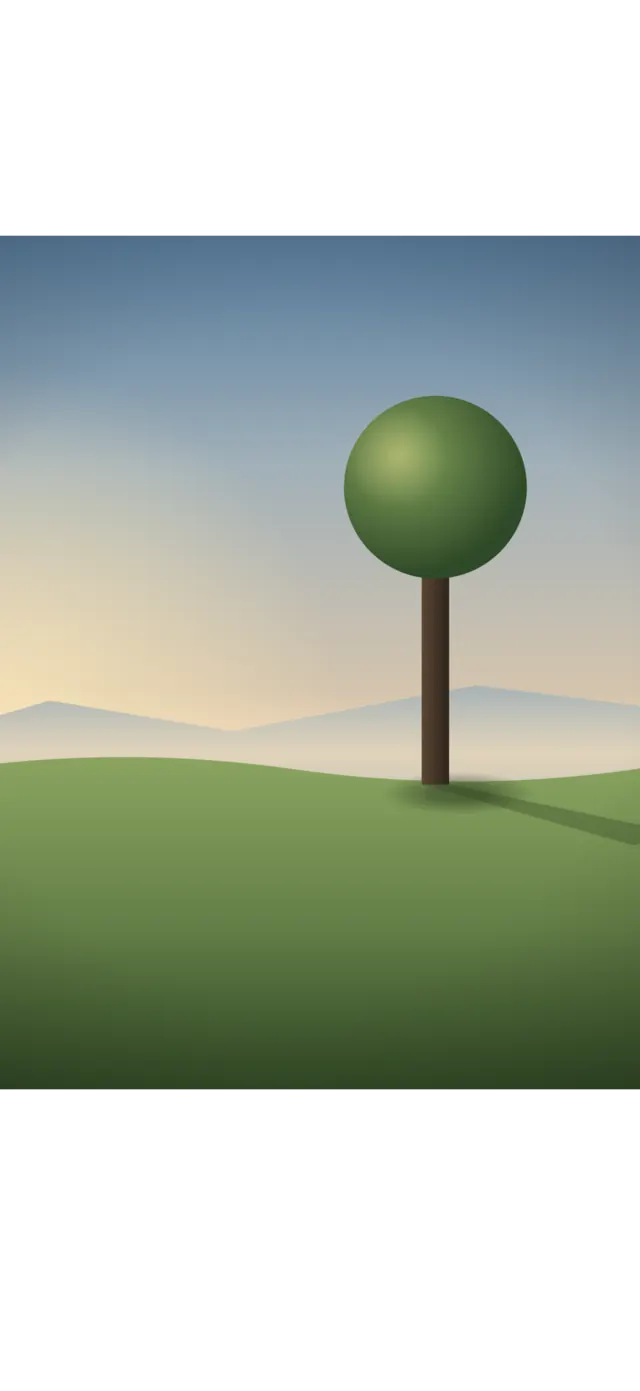
The live picture from the camera, at the back.
The guide
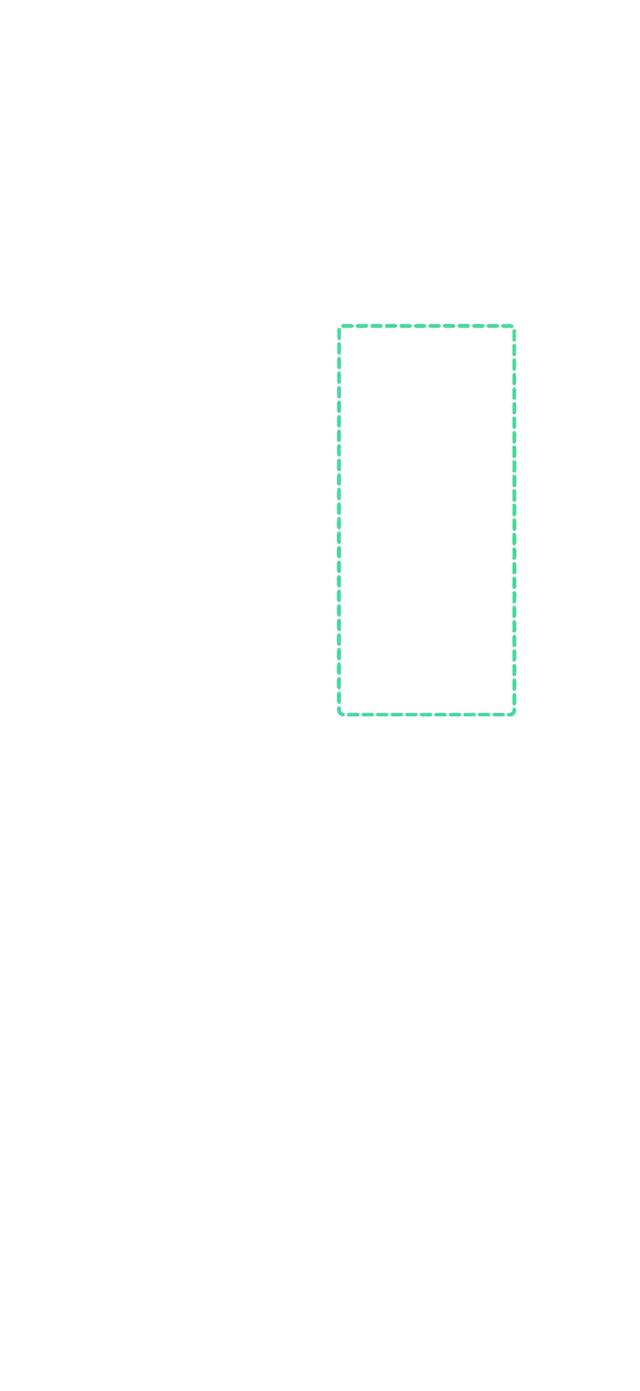
The composition drawn for this scene: the target, the lines, where your subject belongs.
The score
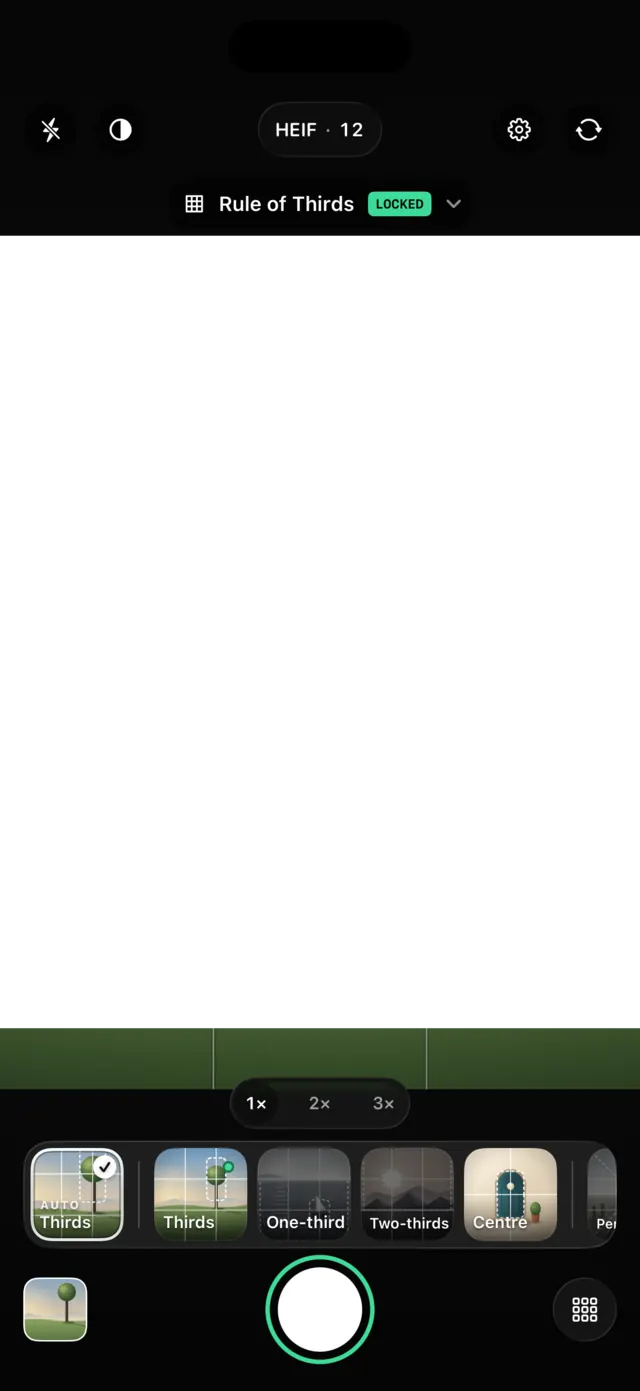
The controls on top, with the ring around the shutter and the coach’s one instruction.
One move at a time.
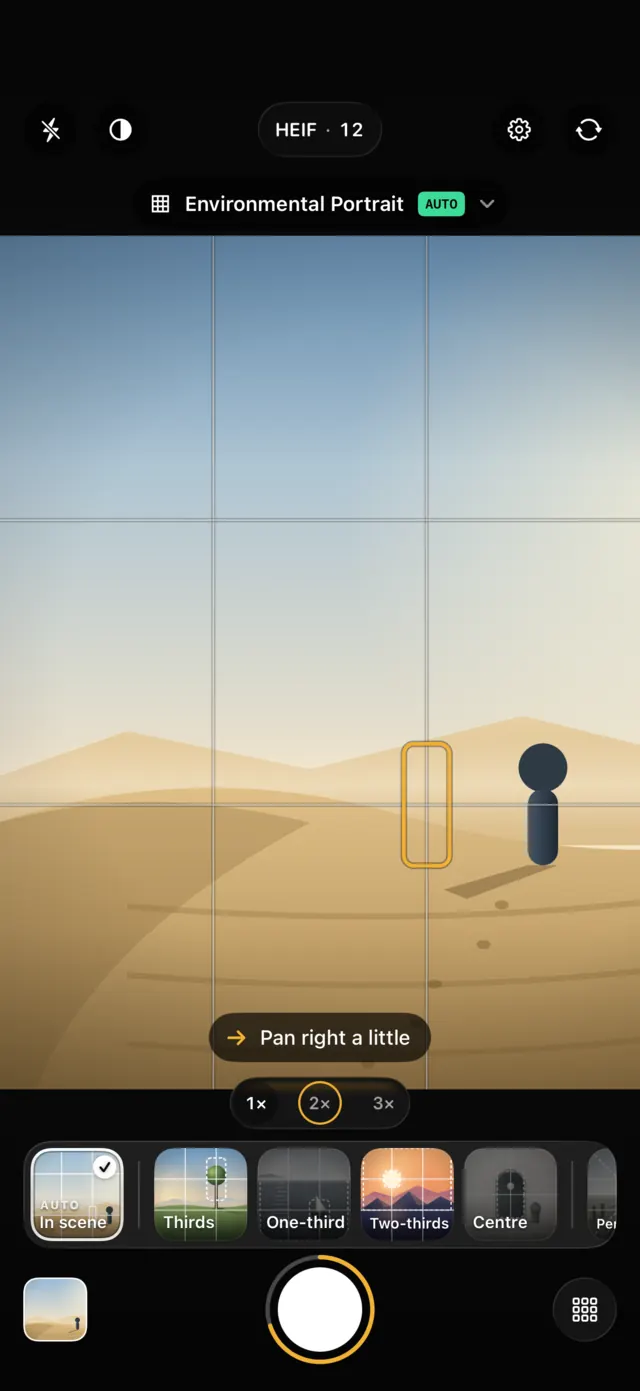
It never hands you a list. Of everything that could be better, the coach picks the change that matters most and says only that. When no move can lock the guide from where you stand, it says nothing rather than send you in circles.
Everything the coach can say
These are the app’s own words. The numbers change with the scene.
- Pan left a little · Pan right a little
- Move the subject sideways onto the target.
- Tilt up a little · Tilt down a little
- Move the subject up or down onto the target.
- Tilt up 4° · Tilt down 4°
- Put the horizon on the guide’s line.
- Level up, 2° off
- The horizon is crooked. Straighten the phone.
- Look further down, 12° · Come up 8°
- Change the camera’s angle, for guides shot from above or at 45°.
- Step closer, or zoom in · Step back, or zoom out
- Make the subject the size the guide asks for.
- Line them up
- Arrange the objects in a straight row.
- Spread them into a triangle
- Arrange the objects as a triangle.
- Hold the phone upright
- Straight lines are leaning. Stand the phone up.
- Locked
- Nothing. The ring turns green, the phone taps and the coach goes quiet.
Every photo keeps its story.
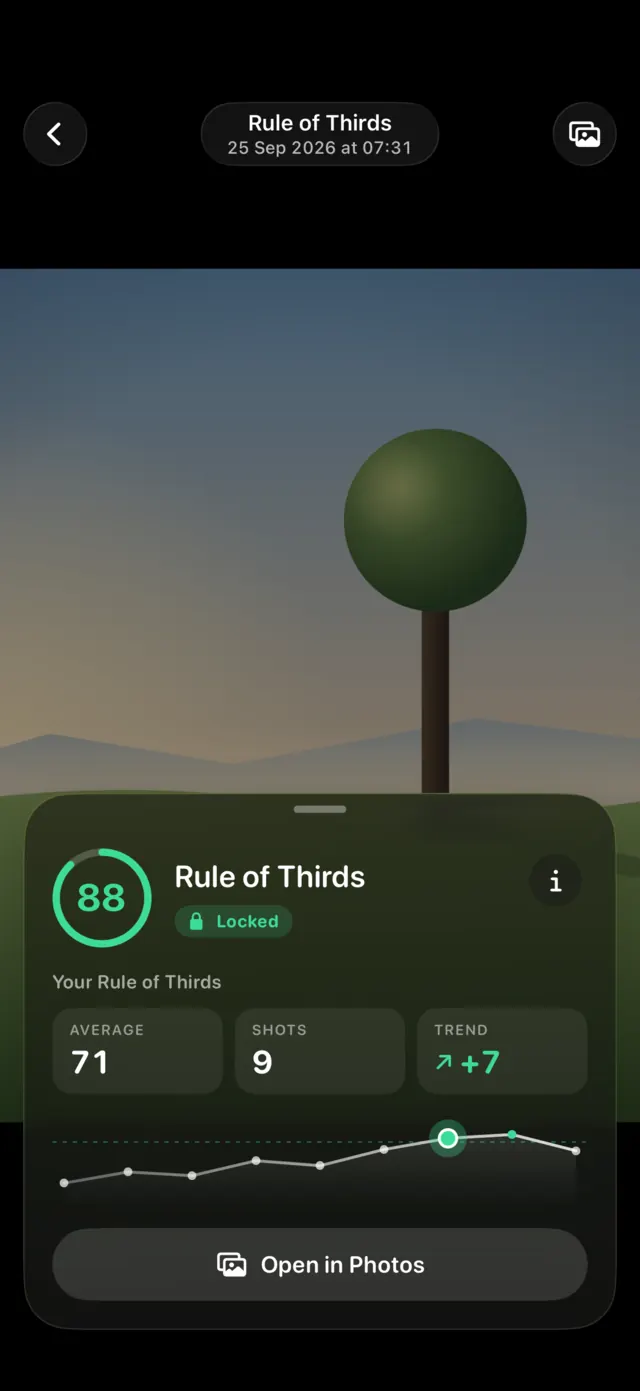
Your photograph goes to your Photos library. Camera Grid files its score and the guide you used beside it, on your iPhone.
- The score that was on screen when you pressed the shutter, never recalculated afterwards.
- The guide you used, and whether you were locked.
- Your average with that guide, and how it is trending.
- Press and hold a photo to see the grid exactly as it was at the shutter.
The camera underneath.
- Format
- HEIF · ProRAW
HEIF every day, Apple ProRAW on iPhones that support it.
- Resolution
- 12 · 24 · 48 MP
48 MP from the main lens at 1×, and a true 24 MP.
- Zoom
- 0.5× – 5×
Pinch, drag the zoom ruler, or take the lens each guide suggests.
- Motion
- Live Photos
With sound, when you turn them on. Off by default.
- Shape
- 4:3 · 16:9 · 1:1
Portrait or landscape, read from gravity, so it works with Orientation Lock on.
- Control
- AE/AF lock
Tap to focus and meter, drag for ±2 EV, long press to lock.
All of it happens on your iPhone.
The scene reading uses Apple’s on-device Vision. The scoring, the coach and your history run on your phone. Camera Grid has no account, no analytics and no network connection of its own, so there is nothing to send and nowhere to send it.
Photos go to your Photos library. To show them in its own viewer, Camera Grid keeps a smaller copy of your 30 most recent photos in its private storage, left out of backups and deleted with the app.
Frame it. Lock it.