Camera Grid
Shoot HEIF for almost everything, and switch to Apple ProRAW when you plan to edit the photo seriously: a high-contrast scene, mixed light, or a picture you want to grade yourself. Use 48 MP in good light when you want the most detail, for landscapes, architecture or a photo you may crop hard. Use 12 MP in low light, where the phone combines pixels for cleaner results, and 12 or 24 MP for everyday shots with much smaller files. The rest of this article explains what each format keeps, what 48 MP actually gives you, and how to pick a setting without filling your storage.
What HEIF is
HEIF is the iPhone’s standard photo format. The camera takes the light from the sensor, runs Apple’s processing on it, and saves a finished image compressed with a modern codec. It holds about the same visual quality as a JPEG in a noticeably smaller file, and it can store more colour depth than JPEG.
What you get is a photo that is ready to share. Exposure, colour, sharpening and noise reduction are decided by the phone. You can still edit a HEIF, and moderate edits look fine. Large changes to white balance or big pushes to the shadows start to show banding and noise, because much of the original data was discarded when the file was made.
What Apple ProRAW is
Apple ProRAW is a raw format built on Adobe’s DNG. It keeps far more of the sensor’s data than a HEIF does, and it still includes the results of Apple’s multi-frame processing, such as noise reduction and the merging of several exposures. It sits between a traditional raw file and a finished photo.
The practical difference shows up when you edit:
- White balance can be changed freely, as if you had set it differently at the shutter.
- Highlights and shadows can be recovered much further before they break up.
- Colour and tone are yours to grade, in the Photos app or in an editor such as Lightroom.
The costs are real. ProRAW files are many times larger than HEIF files at the same resolution, and a 48 MP ProRAW is larger still. Each shot takes longer to save, so rapid presses can make the camera wait. And a ProRAW straight from the camera can look flatter than the HEIF would have, because it is meant to be finished by you. ProRAW is available on the iPhone Pro models.
What 48 MP is for
iPhones with a 48 MP main camera have a sensor whose pixels are arranged in groups of four. The phone can use them two ways:
- Combined, for 12 MP. Each group of four acts as one larger pixel. It gathers more light per pixel, which helps in dim scenes and keeps noise down.
- Separately, for 48 MP. Every pixel is read on its own. In good light this resolves much finer detail: leaves, brickwork, text on a distant sign.
24 MP sits between them. It keeps much of the extra detail while staying far smaller than a 48 MP file, which makes it a good everyday setting when you want more than 12 MP.
Where 48 MP pays off
- Landscapes and cityscapes with fine detail across the whole frame.
- Architecture, where straight edges and texture reward resolution.
- Photos you expect to crop, or print large.
Where it does not
- Low light. The combined 12 MP mode usually looks cleaner.
- Moving subjects. A higher resolution shows every trace of blur.
- The ultra wide and telephoto lenses. Full 48 MP detail comes from the main lens at 1×.
- Photos for messages and social media, which get resized anyway.
Editing a ProRAW file
A ProRAW file opens in the Photos app like any other photo, and the same Edit tools work on it. The difference is how far they go. Try these first:
- Set white balance before anything else. Warmth and tint change the whole picture, so fix them at the start.
- Bring the highlights down, then lift the shadows. This is where ProRAW earns its size. A bright sky and a dark street can both keep detail.
- Add contrast back last. Raw files start soft on purpose. A little contrast and saturation at the end brings the picture to life.
If you never find yourself making these edits, HEIF is probably the better choice for you.
Choosing a combination
- Everyday, sharing, low light: HEIF at 12 or 24 MP.
- A detailed scene in good light you will not edit much: HEIF at 48 MP. You get the detail without raw-sized files.
- High contrast or mixed light, edited later: ProRAW at 12 MP. The editing room matters more than the pixels.
- A landscape or building you will edit and print: ProRAW at 48 MP, on the main lens at 1×, with the phone steady.
Some features do not combine. Live Photos, for example, is not available with every format and resolution. Expect the camera to switch one off when you choose the other.
Composition still comes first
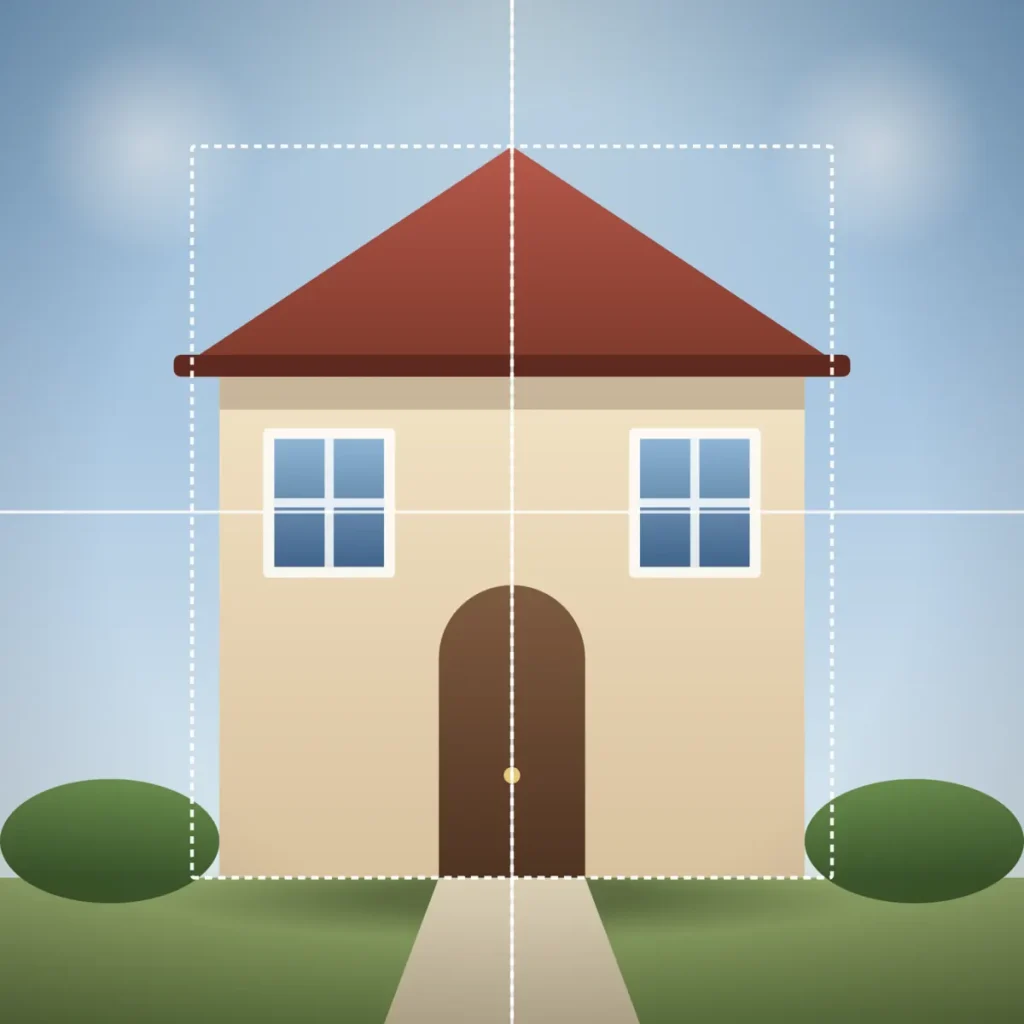
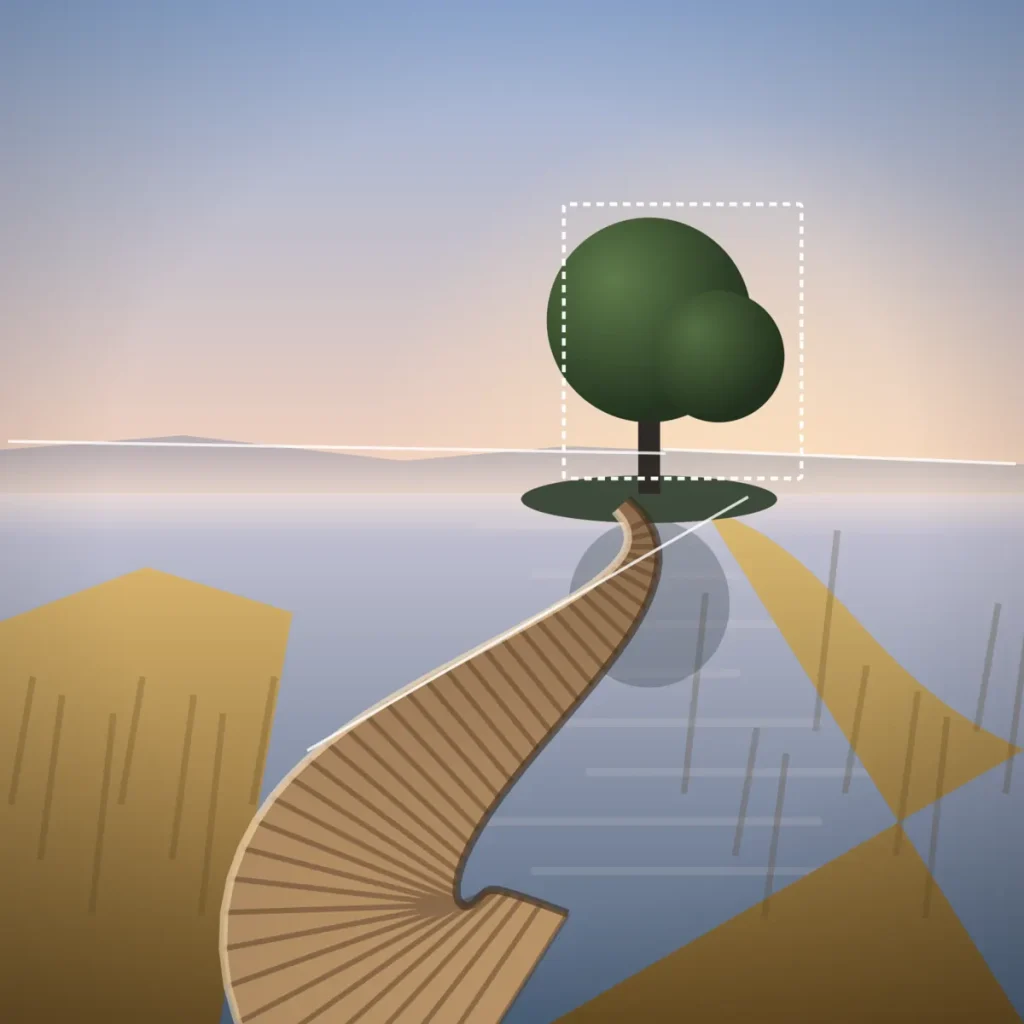
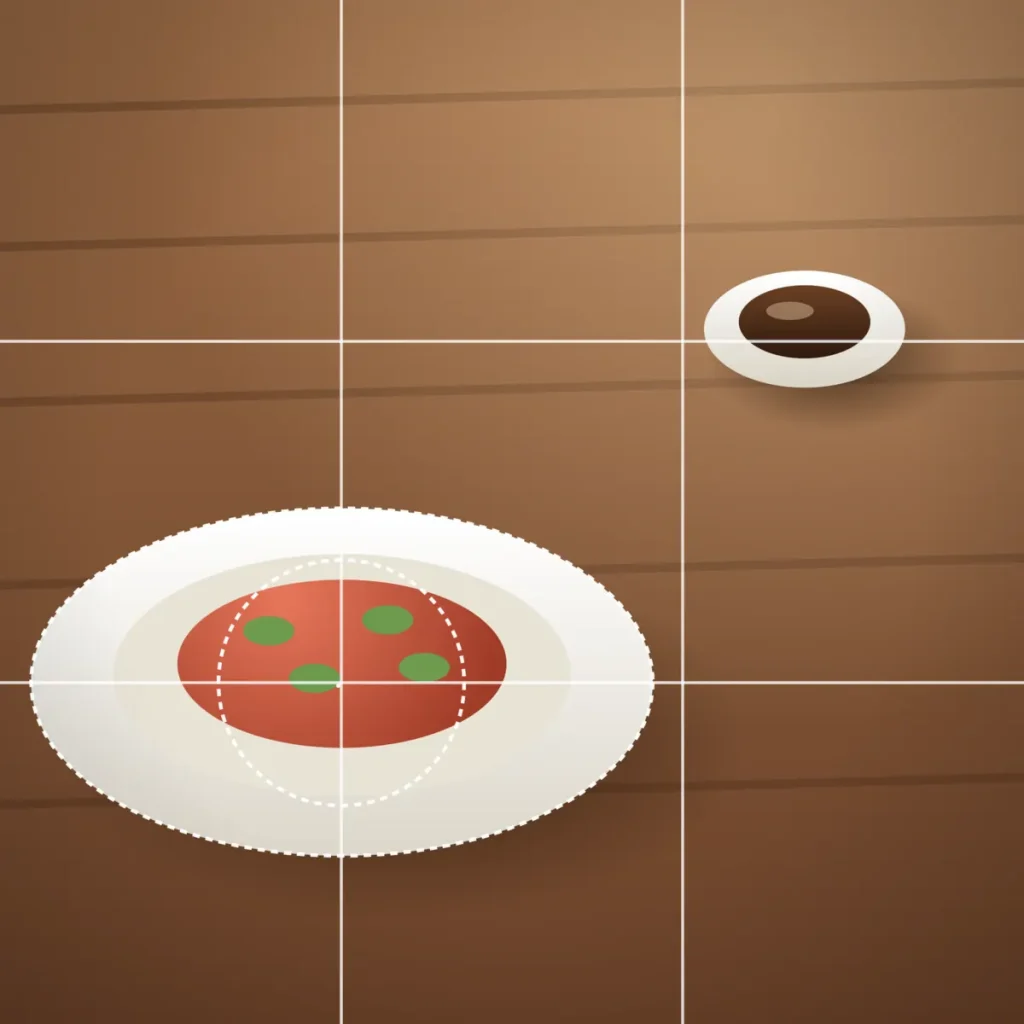
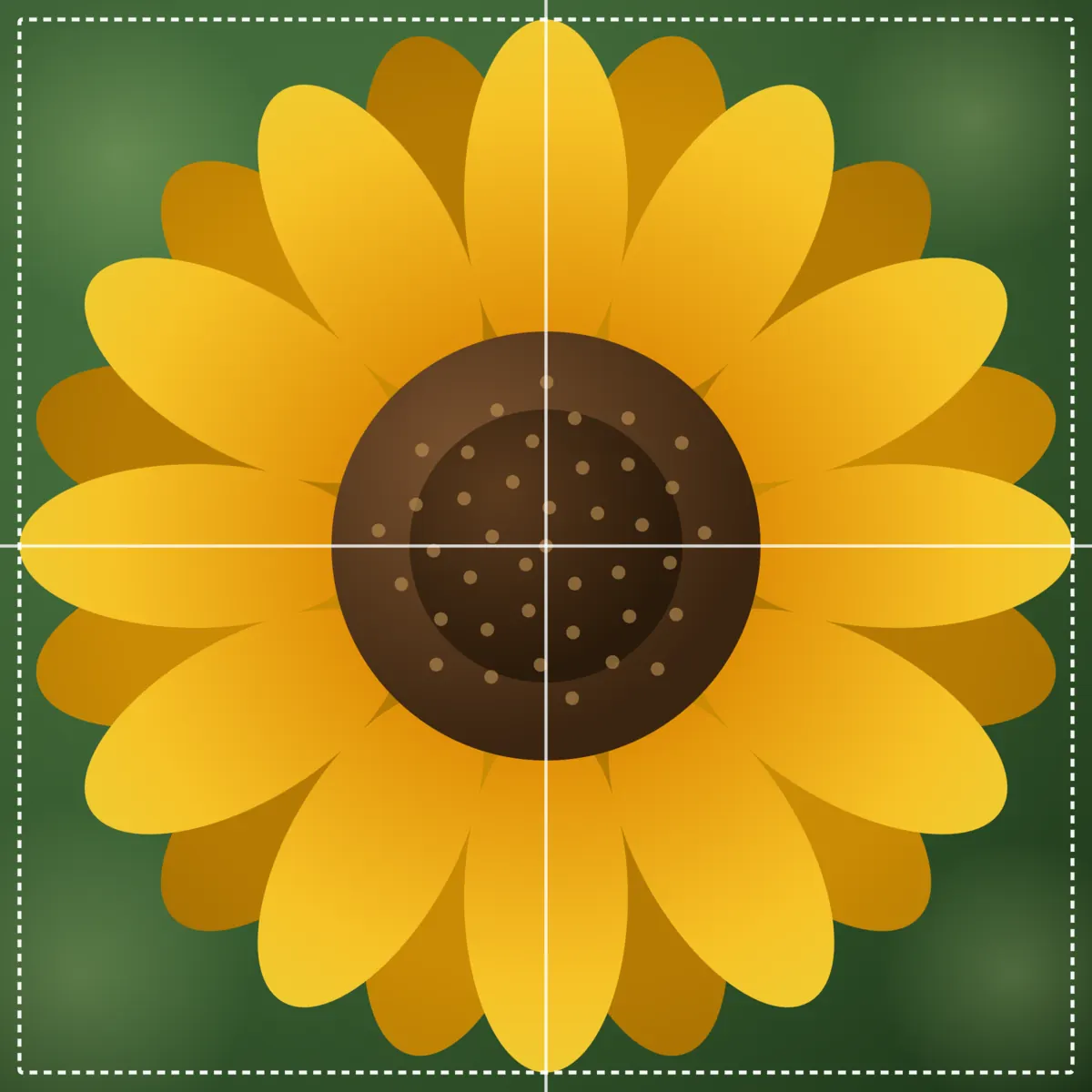
A 48 MP ProRAW of a badly framed scene is a very large badly framed photo. Resolution lets you crop, but every crop narrows the view, and a crop cannot move the camera to fix a tilted horizon or a subject hidden behind a post. Frame it in camera. For detailed scenes, a Two-Point Perspective view of a building corner or a clean Fill the Frame shot of a texture both reward the extra pixels.
Camera Grid shoots HEIF or Apple ProRAW at 12, 24 or 48 MP, with a badge in the viewfinder to change them, and it draws a composition guide over the scene and scores your framing live while you shoot.
Checklist
- HEIF by default; ProRAW when you plan real edits.
- 48 MP in good light, on the main lens at 1×, for detail and cropping.
- 12 MP in low light and for moving subjects.
- 24 MP as a detailed everyday middle ground.
- Keep an eye on storage: ProRAW and 48 MP files add up quickly.
- Frame in camera; resolution does not fix composition.